Submit a referral from mobile, start to finish
File it and finish it from your phone. Needs an owner or dispatcher login.
Four steps on your phone: pick the store, enter the details, log the referral, then take the two drop-off photos once you are on site. This is the path if you run the tow yourself.
Open Referrals and start one
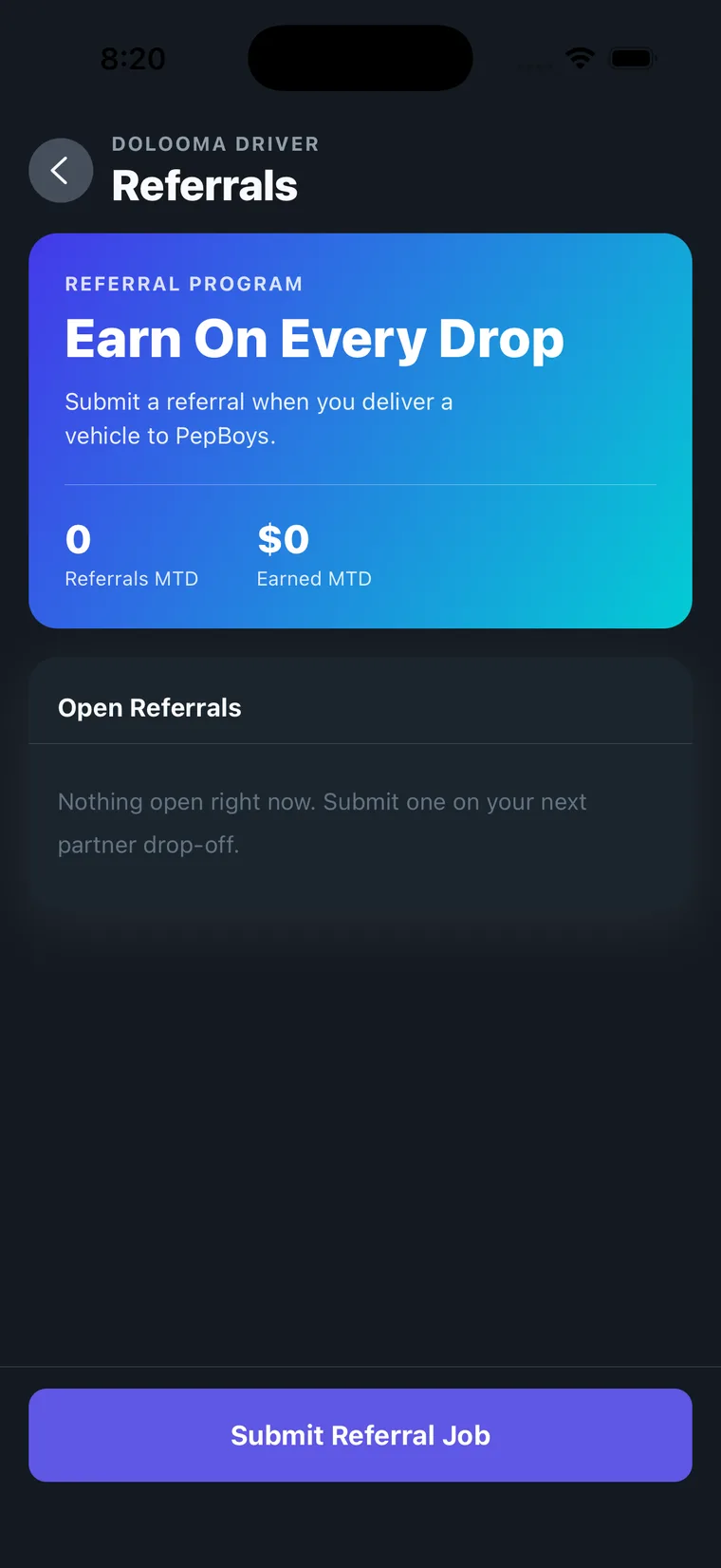
The Referrals screen shows your month to date: how many referrals you have submitted and what you have earned.
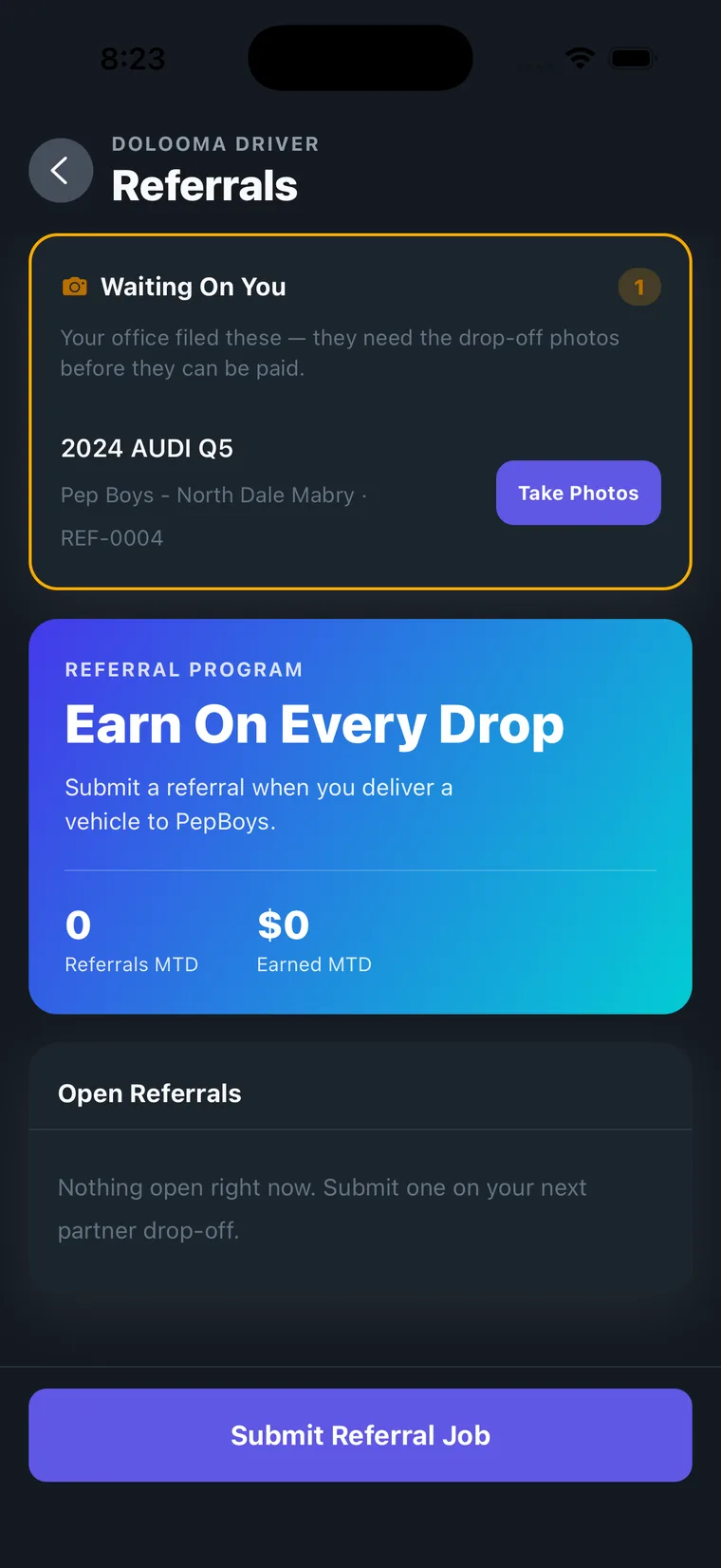
Check the top of the screen first. An orange Waiting On You card means a referral already exists and needs its photos, either one your office filed or one you saved with Finish Later. Deal with that before starting a new one.
Otherwise tap Submit Referral Job.
Choose the Pep Boys location
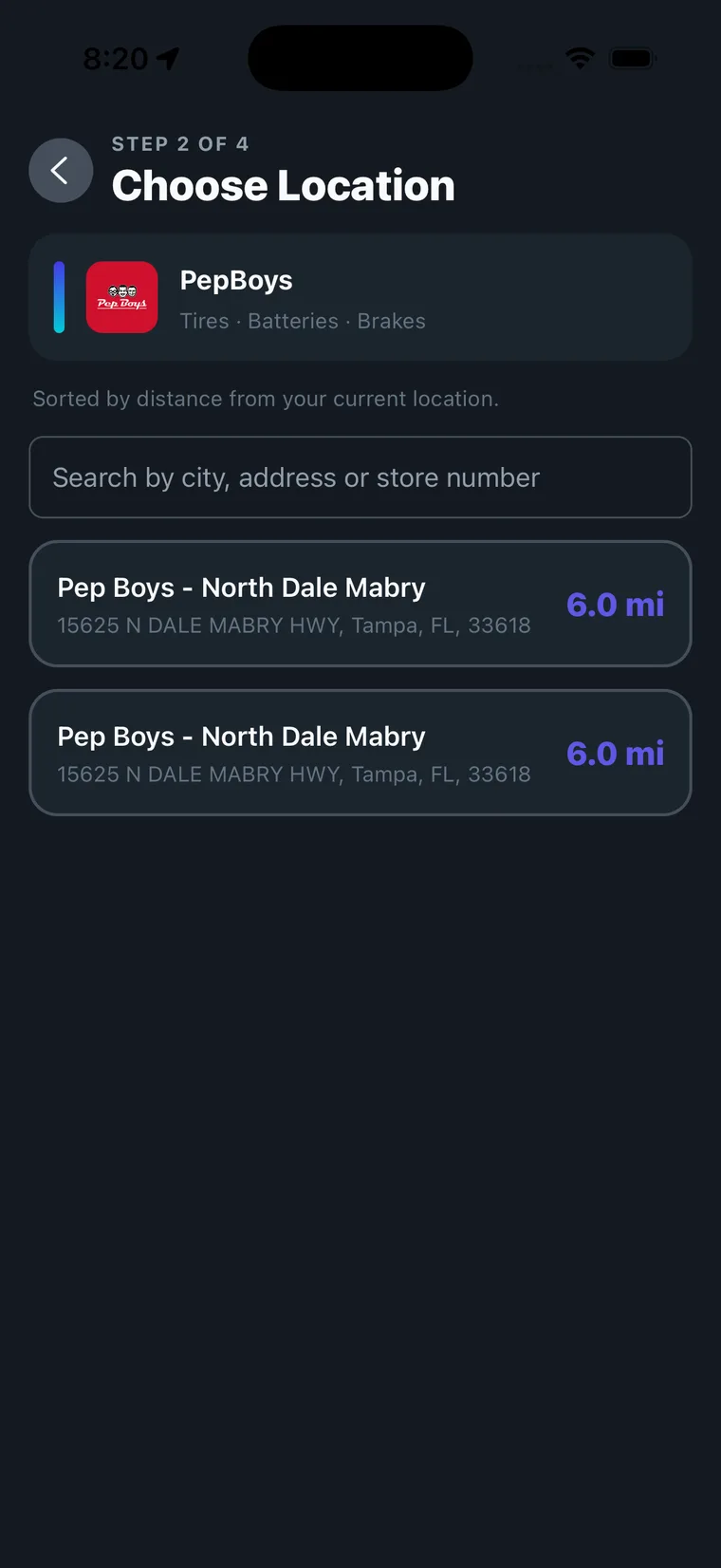
Stores are sorted by distance from where you are. You can also search by city, address or store number.
Enter the drop-off details
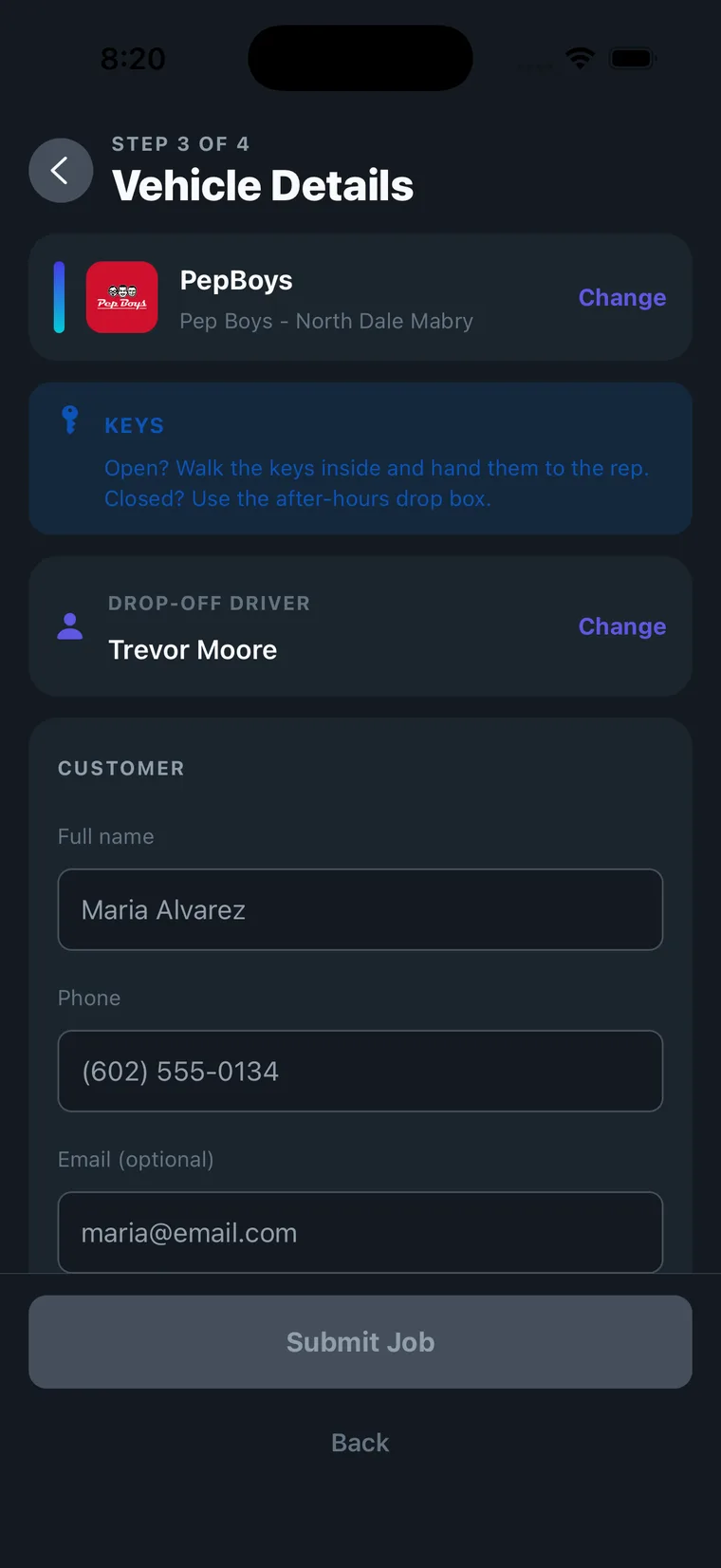
Step 3 is one long screen. It opens with the store you picked, a reminder about the keys, and the Drop-off driver. Both the store and the driver have a Change link if you picked wrong.
Enter the customer’s full name and phone. Email is optional.
Search for the pickup address, then set when the vehicle was dropped off. Today or Yesterday, with the time adjusted in 15-minute steps or set to now. Those two buttons are the 48-hour window in practice: there is no way to log a drop from three days ago.
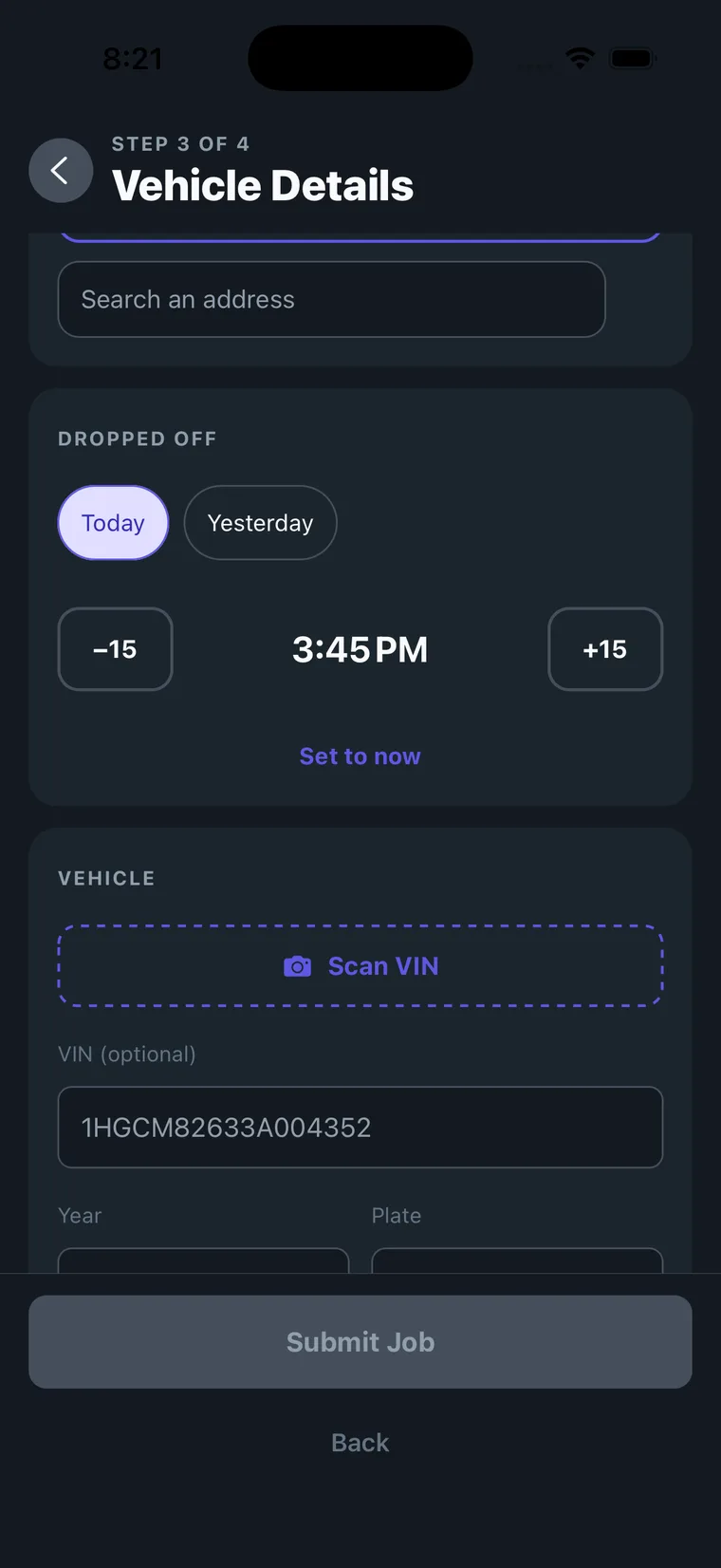
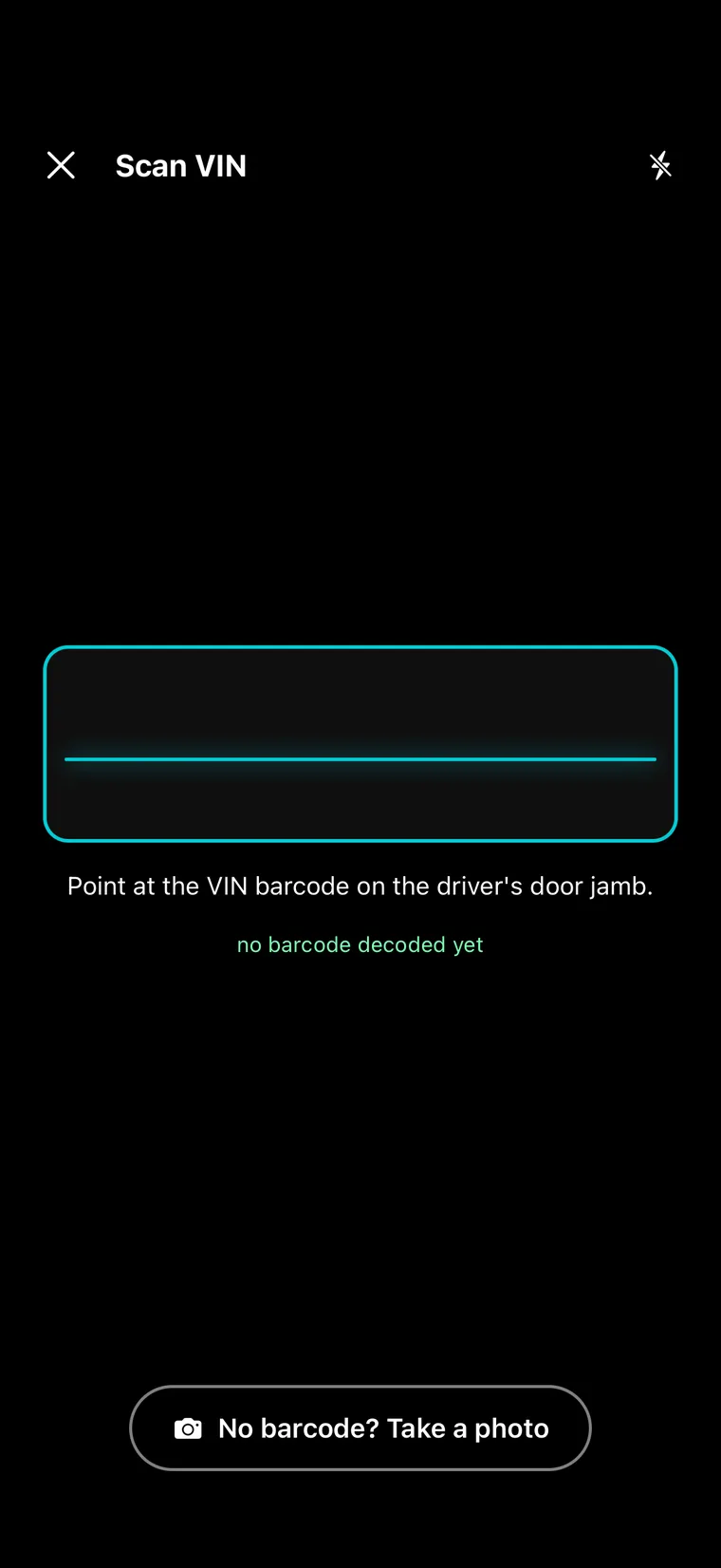
For the vehicle, tap Scan VIN and point the camera at the barcode on the driver’s door jamb. If the barcode will not read, No barcode? Take a photo falls back to a picture.
VIN, color and work order number are all optional. Fill in year, plate, make and model if the scan did not.
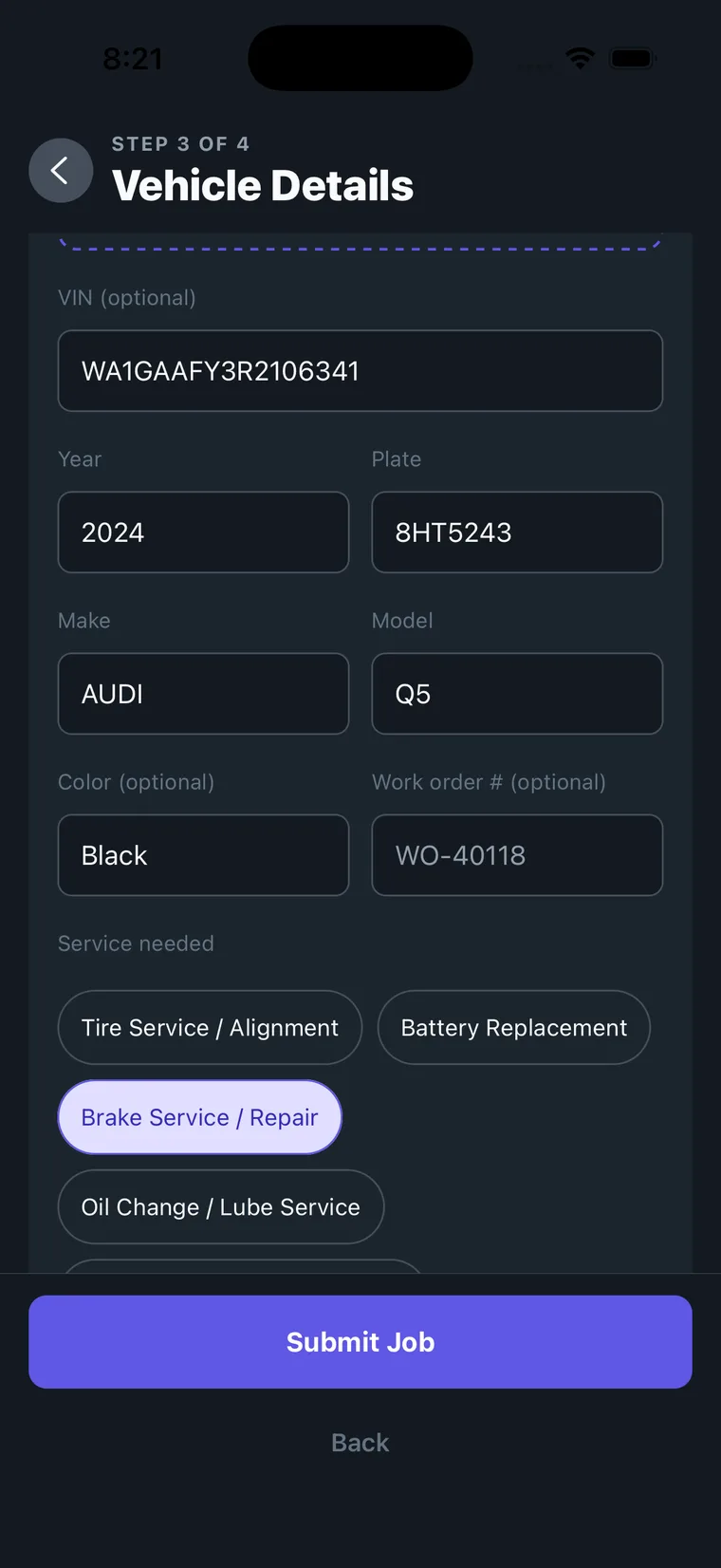
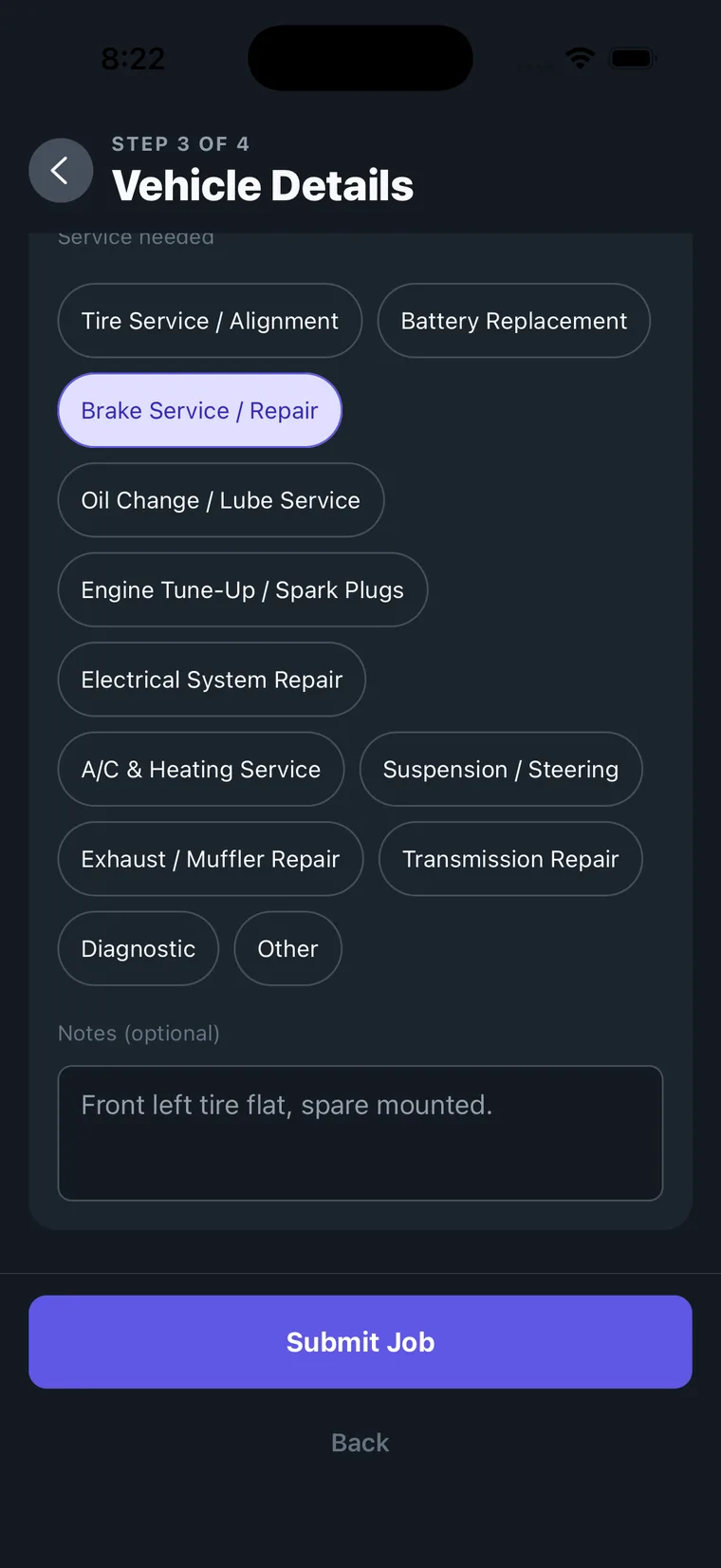
Pick the service the vehicle is going in for, add notes if anything needs explaining, then tap Submit Job.
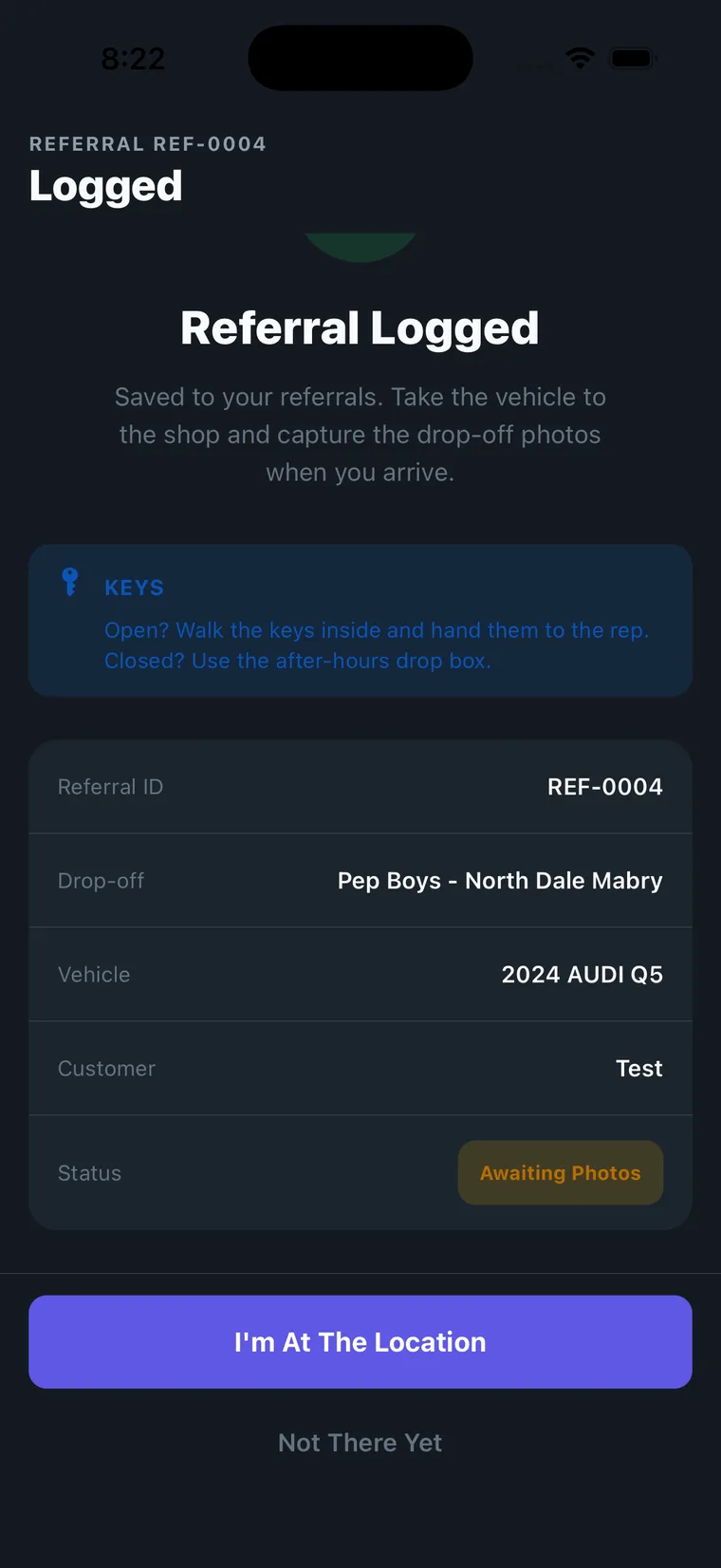
The referral is logged
You get a referral ID and a summary. The status reads Awaiting Photos until you are on site.
Tap I’m At The Location when you arrive, or Not There Yet if you are still on the way. It stays in Open Referrals either way.
On site, take the two drop-off photos
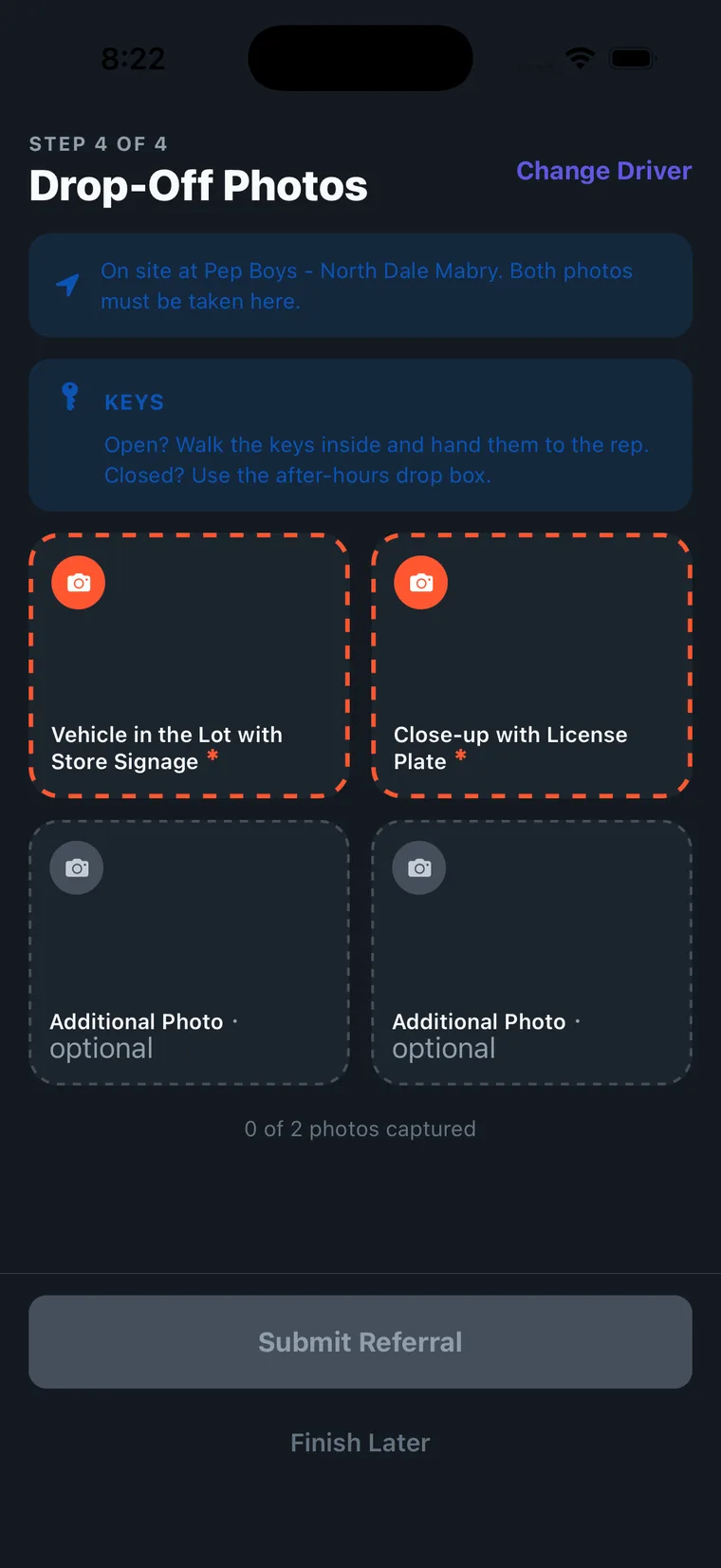
Tap I’m At The Location when you arrive. The app confirms you are on site at the right store, and both photos have to be taken there.
Two tiles are required and outlined in orange. Two more are optional if there is anything else worth showing.
| Required photo | What it needs to show |
|---|---|
| Vehicle in the Lot with Store Signage | The vehicle off the truck, on Pep Boys property, with the store sign in frame |
| Close-up with License Plate | Make, model and plate all readable |
The counter underneath tracks progress. Submit Referral stays disabled until both are captured. Finish Later leaves the referral open if you are interrupted, but the photos still have to be taken at the lot, so use it sparingly.
If something goes wrong
- You left without the photos. The referral sits in Open Referrals as Awaiting Photos, but the photos have to be taken on site, so going back is the only fix.
- Wrong store selected. Use Change on step 3 before you submit the job.
- Someone else is taking the vehicle in. Change the drop-off driver on step 3, or use Change Driver on the photos screen.
- The barcode will not scan. Take a photo instead, or type the plate and vehicle details by hand.
Getting paid
Once both photos are in and you submit, the referral goes to verification. On approval, $20 is paid on top of your retail tow fee, and it shows in your month-to-date total on the Referrals screen.
Program details, eligibility and the participating-store map are on the Pep Boys program page on partnerhub.
Pep Boys is a registered trademark of its respective owner. Program eligibility and bonus amounts are subject to verification. Program availability and terms are subject to change.